How to Use Flora
Learn how to navigate our plant database, search and filter species, use the quick preview pop-ups, read plant pages, and use mobile gestures.
Key Features
Smart Filtering
Combine search keywords with plant types, flower colors, habitats, and flowering/fruiting months to find specific plants instantly.
Preview Pop-ups
Click any card to open a quick preview pop-up modal to read plant properties and see photos without leaving your search page.
In-Depth Plant Profiles
Study full plant profiles detailing synonyms, etymology, distribution mapping, diagnostic characters, and ecology.
Photo Carousel & Zoom
Flip through high-quality field photos using touch swipe or arrow controls and tap to expand them to full screen.
Interactive Families
Browse families on a dedicated page showing species counts and click cards to instantly load their catalog list.
Smart URL Sync
Share or bookmark filtered lists easily. The web address updates dynamically as you search and select filter categories.
Search & Filters
The filter dashboard is your primary tool for exploring the database. You can search by name or combine visual tags:
On a Computer (Desktop)
Filters sit persistently in a column on the left side of the screen. As you check boxes or type in the search bar, the plant list on the right updates instantly.
On a Phone (Mobile)
To save screen space, filters are hidden inside a toggle drawer. Tap the green Filters toggle button at the top to slide the options open, choose your options, and tap apply.
- Text Search: Searches scientific names, common names, and family names all at once.
- Clear All Filters: Reset your workspace by clicking the red button next to your active search pills.
 Exploring plants with search keyword and category filters.
The Preview Pop-up Modal
 The preview popup modal overlay.
Clicking any plant card on the search page opens a pop-up modal overlay, allowing you to examine the plant quickly without reloading the page:
On a Computer (Desktop)
Opens a centered box over your screen. It displays the plant photos on the left and the core attributes (habit, family, genus, species) and phenology (flowering/fruiting months) on the right.
On a Phone (Mobile)
Fills the mobile screen vertically. The photo slide sits at the top, and you scroll downwards to review the plant properties. Tap the close icon to dismiss.
- Quick Navigation: Click “View full plant profile” in the pop-up footer to open the dedicated plant page.
- Quick Dismiss: Click the close button (×), tap on the dark background overlay, or press the Escape key on your keyboard.
Individual Plant Pages
Dedicated profile pages display all registered information in a structured, comprehensive visual format:
On a Computer (Desktop)
Arranged in a highly balanced layout:
- Top: Image Carousel (Left), Meta names & Attributes/Phenology card (Right).
- Middle Row 1: 3-column cards for Synonyms, Habitat & Ecology, and Diagnostic Characters.
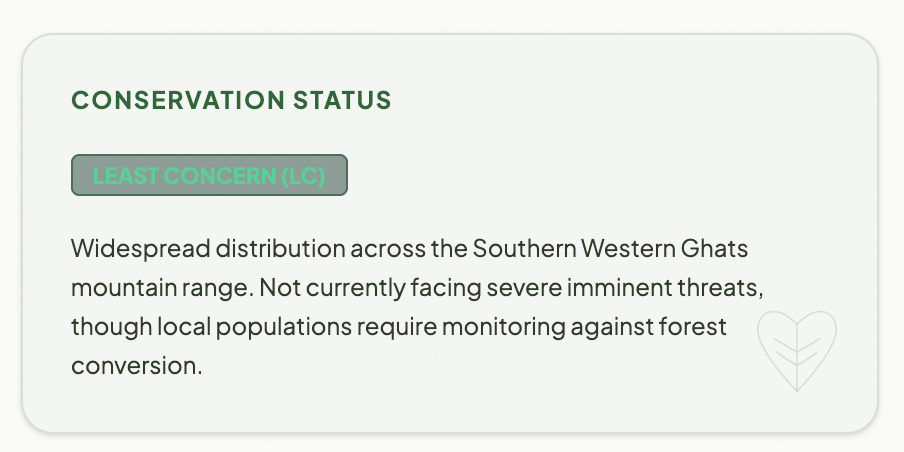
- Middle Row 2: 2-column cards for Conservation Status and the Distribution Map.
- Bottom: Full-width Description card, followed by related plant matches.
On a Phone (Mobile)
Stacks all details vertically. After the title and attributes cards, sections like “About this species”, “Habitat & Ecology”, “Conservation”, and “Distribution” collapse into neat accordions. Tap any accordion header to open it.
 The individual plant details page.
Tips for Mobile vs. Computer
On a Computer (Desktop)
- Hover over cards to see smooth animations.
- Use the left/right arrows on the photo viewer to click through images.
- Press the zoom button on the photo, then hit the Esc key on your keyboard to close fullscreen mode.
On a Phone or Tablet (Mobile)
- Use your finger to swipe left or right directly on plant photos to flip through them.
- Tap the hamburger menu icon (the three horizontal lines in the top right corner) to open menu links, and tap outside to close it.
- Tap titles (like “About this species”) to expand collapsible accordion blocks and read content easily without scrolling too much.
Light & Dark Themes
You can toggle between Dark Mode and Light Mode by clicking the sun/moon icon on the right side of the top header menu. Use Light Mode when browsing outdoors in bright sunlight to make reading easier, and swap to Dark Mode for comfortable, low-light viewing.